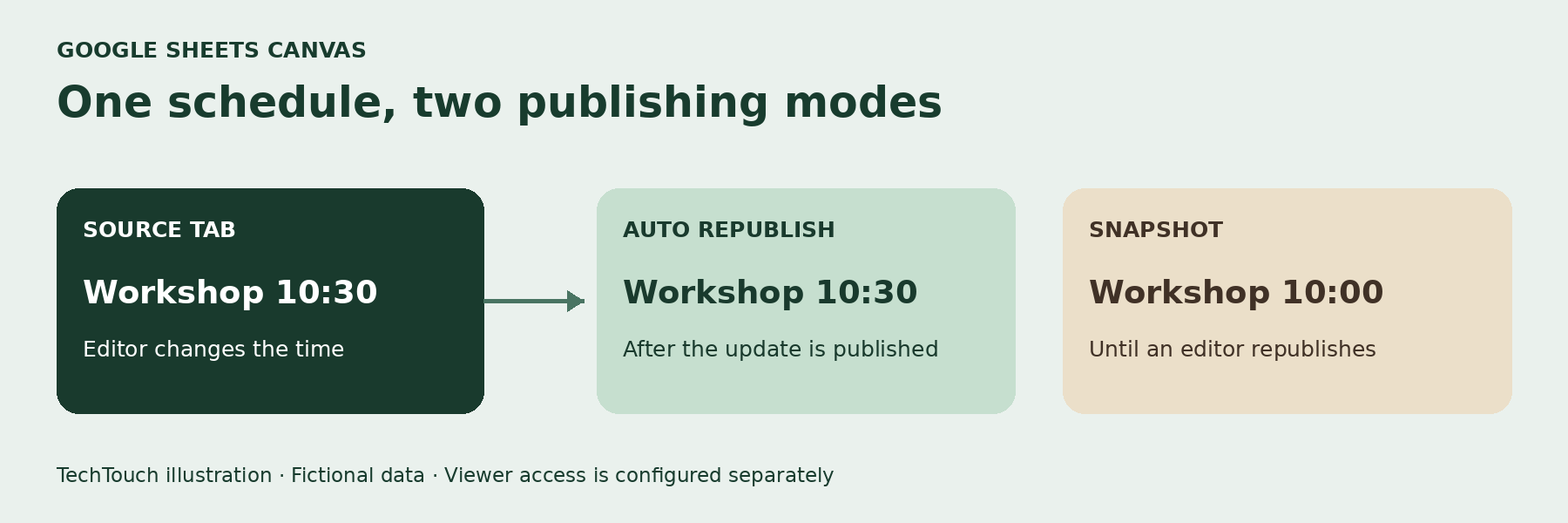
Fictional Workshop time in automatic republishing and snapshot modes
Fictional Workshop time in automatic republishing and snapshot modesOriginal image: TechTouch ↗
SOFTWARE · GOOGLE SHEETS

Google Sheets adds standalone canvas links. How to test visibility before publishing

A Sheets canvas can have its own audience and follow source changes or show a snapshot. Test both with a fictional schedule.

On November 11, 2026, Google announced a rollout that lets editors publish Sheets canvases as separate read-only links. Viewers can interact with the canvas. Editors set the audience independently from spreadsheet sharing and can publish a view that follows source changes or a snapshot of the data.

The key points

  • The canvas audience is configured separately from spreadsheet access
  • Choose updates from the source or a snapshot
  • Review the result from an account with viewer access

A canvas has its own link and audience

Sheets canvas uses Gemini to create an interactive view such as a calendar or dashboard from one tab. When an editor publishes from the canvas toolbar on the web, Sheets creates a viewer link separate from the spreadsheet URL. A planning team can keep editing the file while an organization views the schedule through the canvas. A wider audience makes it important to inspect the actual data visible in that view.
Check edition and publishing policy

Rapid Release began on November 11 and Scheduled Release starts December 2, 2026. Google allows up to 15 days of gradual visibility per track. Listed plans include Business Standard and Plus, Enterprise Standard and Plus, Google AI Pro and Ultra, Google AI Pro for Education and AI Expanded Access. Creation and editing have per-user limits. Publishing uses Drive’s existing Publish to the web setting and is available in Sheets on the web.

Make the same edit in both publishing modes

Start with two copies of a fictional schedule, each with a Workshop at 10:00. Set one canvas to update with the sheet and publish the other as a snapshot. Move both source entries to 10:30. Open the links from a viewer account and record the displayed time and when you checked. If the automatic view is still stale, record that observation and recheck after the change is republished. Use the table below to compare the two links.

Review what a viewer can access

TechTouch recommendation: build the canvas from a dedicated publishing tab containing event name, time and room. Keep participant details outside the publishing dataset. Test search, filters and item details with a viewer account. Confirm the source spreadsheet still denies that account access, then test the canvas link with an account outside the configured audience.

Name an owner before distributing the link

Google says editors can change the audience and stop publishing from the canvas toolbar. Have the data owner check the audience, update mode and exposed columns before distributing the link. For a frequently revised schedule, identify who edits the source. For a monthly snapshot, date the published data and assign someone to publish the next version.

Details and limitations

CheckFictional inputExpected observation
Automatic republishingChange Workshop from 10:00 to 10:30The link displays 10:30 once the change is republished
SnapshotMake the same edit after publishing the snapshotThe link displays 10:00 until a new version is published
Viewer scopeAllow the test viewer to open the canvas onlyThe viewer can open the canvas and is denied access to the spreadsheet

Things to know and check

  • Confirm edition and release track
  • Compare both modes on fictional data
  • Use allowed and excluded viewer accounts
  • Stop publishing the test link after recording results

Sources used for verification

Vendor facts are separated from TechTouch guidance. Features, pricing, and commercial terms may change, so check dates and conditions at the original source.

  1. Google Workspace Updates · November 11, 2026
  2. Google Help · Create a Sheets canvas
  3. Google Help · Publish files to the web
Our editorial approach

Frequently asked questions

Can viewers edit the spreadsheet?

The published canvas is read-only. Spreadsheet editing rights depend on the source file’s sharing settings.

Is Business Starter listed?

The rollout notice lists Standard and Plus for Business and Enterprise. Check the edition before planning use.

Test Workspace Skills before sharingGemini analyzes Forms responses