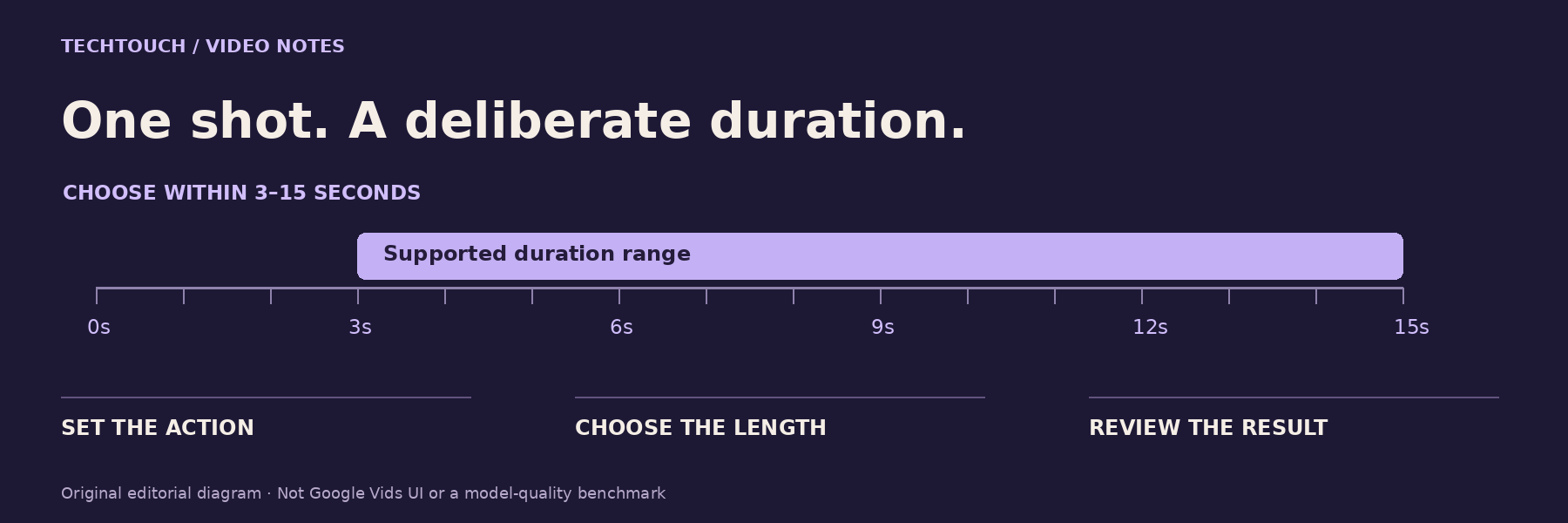
Original TechTouch diagram of shot timing within the 3–15 second range; not a Google Vids screenshot
Original TechTouch diagram of shot timing within the 3–15 second range; not a Google Vids screenshotOriginal image: TechTouch ↗
SOFTWARE · AI VIDEO

Google Vids gets 15-second Omni 1.2 Flash clips: what changes for editing

Google’s November 5 Vids update explained: choosing a 3–15 second clip, checking monthly allowances, and reviewing picture and sound before publication.

Google announced Gemini Omni 1.2 Flash in Vids on November 5, 2026, with selectable 3–15 second clips and claimed improvements in reference consistency and speech. The update gives an individual shot more room to develop; it does not give every account the same generation allowance.

The key points

  • Choose duration around the purpose of a shot
  • Separate monthly seconds from per-clip duration
  • Treat improved quality as a developer claim to evaluate

A longer shot helps when an action needs a beginning and an end

The update gives an event more room within one shot, such as picking up an object and putting it down.

TechTouch analysis: the useful measure is whether the action reads clearly, rather than how many seconds were generated. Extending a static moment may add length without improving communication. Short shots still have a role as transitions and editorial punctuation. Choose the duration after deciding what a viewer needs to see.
Set duration before generating

In its media-placeholder replacement instructions, Google directs users to the Omni options and a duration slider covering 3–15 seconds, followed by Generate.

TechTouch recommendation: specify the subject, action and endpoint first. Keep the prompt and chosen length together so the next comparison changes one variable at a time. Do not assume that Vids controls and conditions are identical to those in the Gemini app or developer API.

Access and allowance answer different questions

The announced Rapid and Scheduled Release rollout began November 5, taking 1–3 days, across personal accounts and multiple Workspace editions. Current help expresses clip allowances in seconds: examples include 60 monthly seconds for personal accounts and 500 for Google AI Pro.

TechTouch recommendation: check the signed-in account and administrator policy before planning a project. A longer permitted clip does not imply unlimited attempts or automatic migration of an existing subscription.

Turn quality claims into review questions

Google says the model improves consistency with references and speech realism.

TechTouch analysis: these are evaluation topics, not assurances for every prompt. Ask whether faces and clothing remain consistent, whether objects move continuously and whether speech ends at the intended moment. Review selected frames as well as actual playback, particularly around edit points. A clean still frame can hide a timing problem that becomes apparent only when the clip is played.

Start with a storyboard and keep the usable shots

Consider this TechTouch workflow: divide a story into three short events, assign each shot a purpose, then choose durations around the narration. Select clips that communicate their event before assembling the sequence. If the middle shot fails, inspect that shot’s prompt and references instead of regenerating the entire story. Keep a reason for accepting or rejecting each candidate. This is an editorial method, not a claim that we spent an account allowance or benchmarked the model.

Check language, rights and accuracy before publishing

The availability guide notes language restrictions across many Vids AI features and access controls for work or school administrators.

TechTouch recommendation: evaluate actual Thai-language work before promising an outcome. Check reference-image rights and consent when depicting real people, and distinguish generated footage from evidence of a real event. Documentation was checked November 9. We have not evaluated this model’s picture or audio quality, and do not substitute API pricing for Vids entitlements.

Details and limitations

DistinctionMeaningHow to use it
Clip durationThe time available for one shotDefine the beginning and end of an action
Monthly allowanceAccount-level generation entitlementCheck the actual account table
Publishable qualityA result that passes reviewInspect picture, sound and continuity together

Things to know and check

  • Define each shot’s purpose and timing
  • Choose duration before generation
  • Check the signed-in account and allowance
  • Review picture, sound and rights before release

Sources used for verification

Vendor facts are separated from TechTouch guidance. Features, pricing, and commercial terms may change, so check dates and conditions at the original source.

  1. Google Workspace Updates — 5 November 2026
  2. Google Vids feature availability — checked 9 November 2026
  3. Google Vids planning and duration controls — checked 9 November 2026
Our editorial approach

Frequently asked questions

Does 15 seconds mean unlimited generation?

No. Per-clip duration and monthly allowance are separate limits; check current account guidance.

Has TechTouch verified improved picture or sound?

No. Quality improvements are Google’s claims; review criteria and the storyboard method are TechTouch recommendations.

Gemini analyzes Google FormsRunway Unlimited transitions to Max